How to place a practice stock trade in 4 steps
The simulator trades with practice money against live prices, so you can learn the buttons before real money is involved. Five minutes covers it.
Load a stock
Type a symbol into the ticker box and press Enter. The chart, the order book and the order ticket all switch to it. Your practice cash and buying power sit in the bar above.
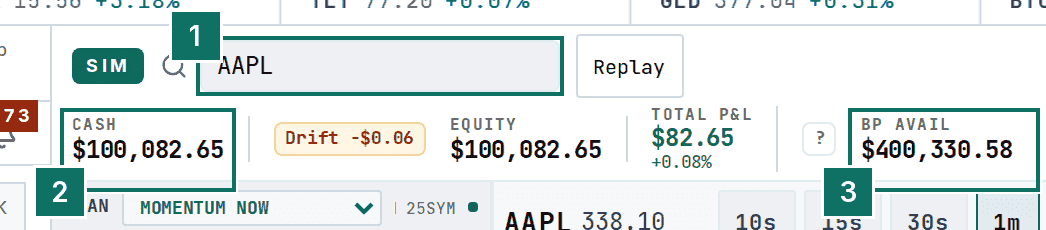
- The ticker box.
- Your practice cash.
- Buying power, the most you can spend on one order.
Place the order
Pick a size, pick an order type, then press BUY. A Limit order fills at your price or better. MKT fills right now at the market. If you just want to see a fill, the BUY MKT button above the chart does it in one click.
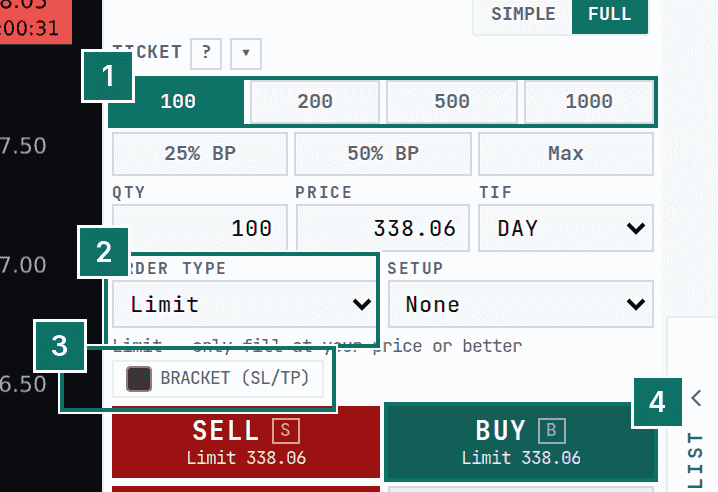
- Size. Tap a chip or type a number.
- Order type.
- Bracket attaches a stop and a target in one go.
- BUY. SELL, SHORT and COVER work the same way.
Set a stop
Once you hold a position, click STOP on its row in the Positions tab. Pick a stop, or a trailing stop that follows the price up, then a quick percent distance. The box shows the exact price and what you would lose if it triggers. Stops and targets stay active in pre-market and after-hours too, using the latest quote. A thin stock can gap through your stop and fill worse, just as in real life.
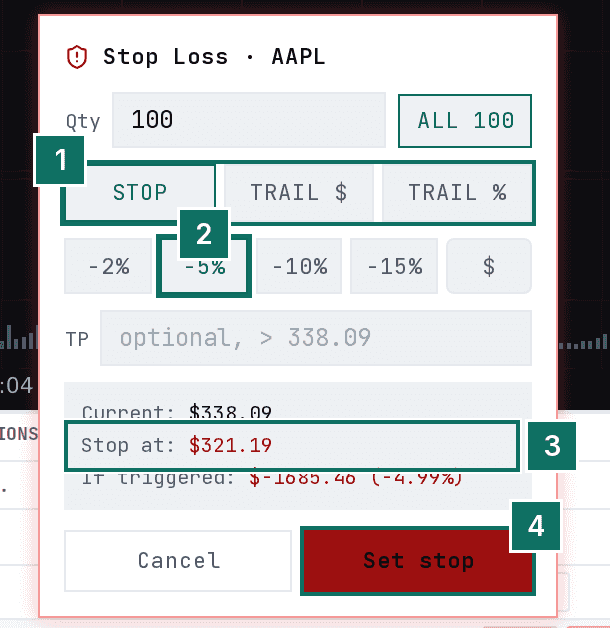
- Stop type.
- A quick percent distance.
- The stop price and the loss if it triggers.
- Set stop.
Close it and review it
Click SELL ALL on the position row, or press F. Every close lands in the Review tab and in your journal with your profit after fees. Add a tag for why you took the trade, then switch to By tag to see which setups work for you.
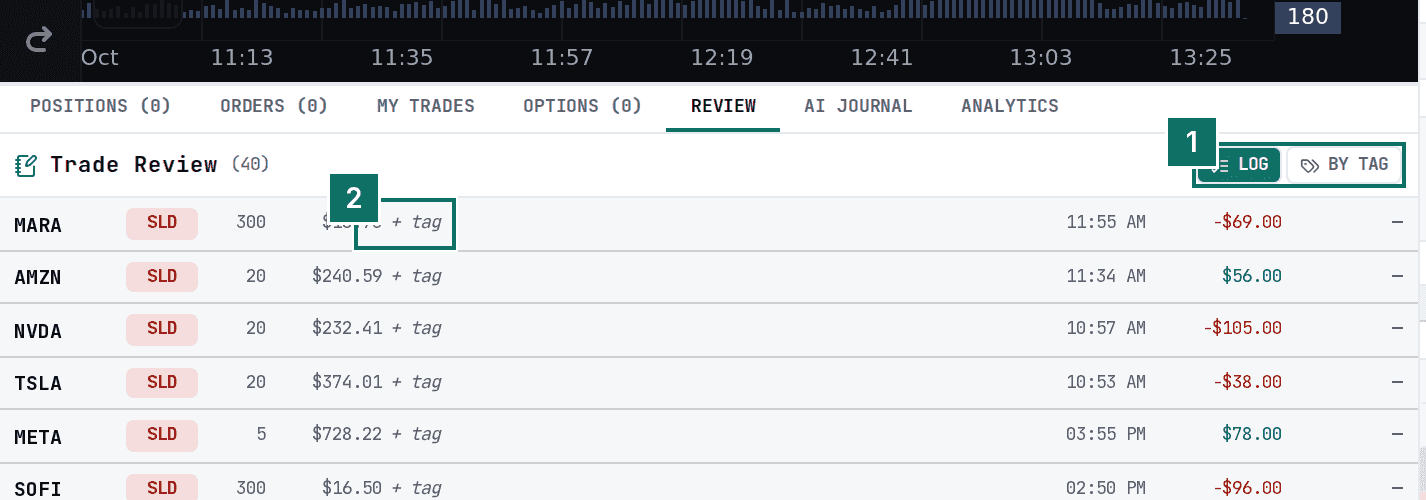
- Switch between the log and the By tag view.
- Click tag to label the trade.
The Trade view
Open the Trade view. Set the size, press SELL or BUY, and use Manage for your positions and stops.
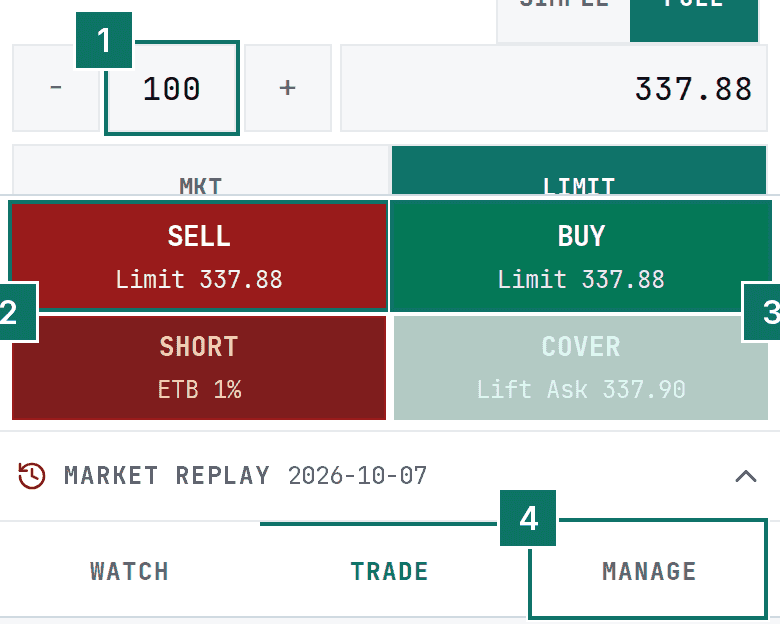
- Size.
- SELL.
- BUY.
- Manage, where positions and stops live.
One round trip, with a stop, is the whole lesson. Do it a few times on names from the scanner and the review tab starts telling you something.
More guides
- How to use a stock scanner in 3 steps
- How to build a watchlist and set price alerts
- How to read your trading journal in 3 steps
Looking for something else? See the full manual or the Academy.