How to use a stock scanner in 3 steps
The scanner lists the stocks that are moving right now. Here is how to read it without getting lost. It takes about three minutes.
Pick a scan
Click the scan name at the top of a panel. Each scan is a saved set of rules, grouped by trading style. Start with Momentum Now, which ranks stocks by their last five minutes of price momentum. Momentum Now stays free, and Pro opens every other scan.
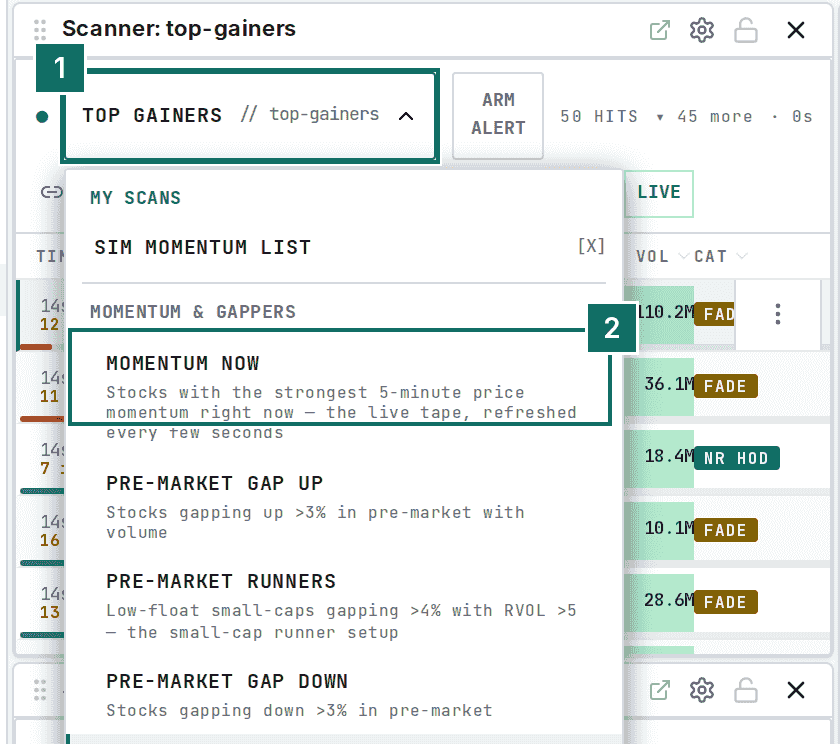
- The scan name. Click it to switch scans.
- Momentum Now, a good first pick.
Read one row
Each row is one stock. Read it left to right, then click the symbol to see its chart beside the list.
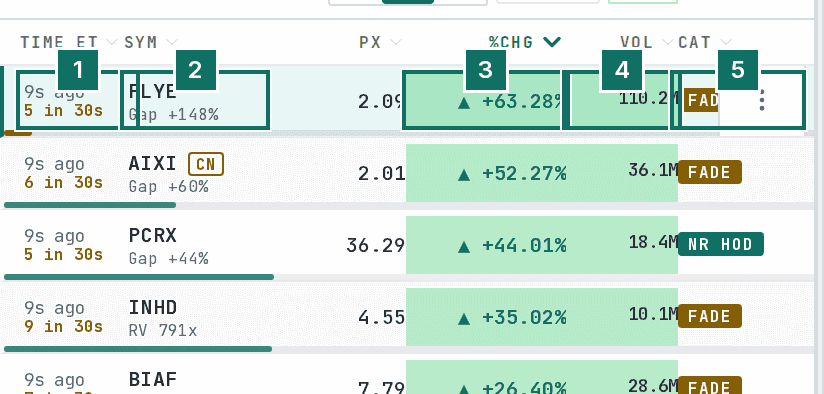
- When the stock showed up on this scan.
- The symbol, with its gap from yesterday's close underneath.
- Percent change today.
- Volume so far today.
- The tag. NEWS means fresh news, NR HOD means near the high of the day, FADE means still up but 10% or more below the day's high, NEW means it just joined the scan.
Send a row somewhere
Right-click any row. You can set a price alert, add the stock to your watchlist, or open it in the simulator to practice the trade with no money at risk.
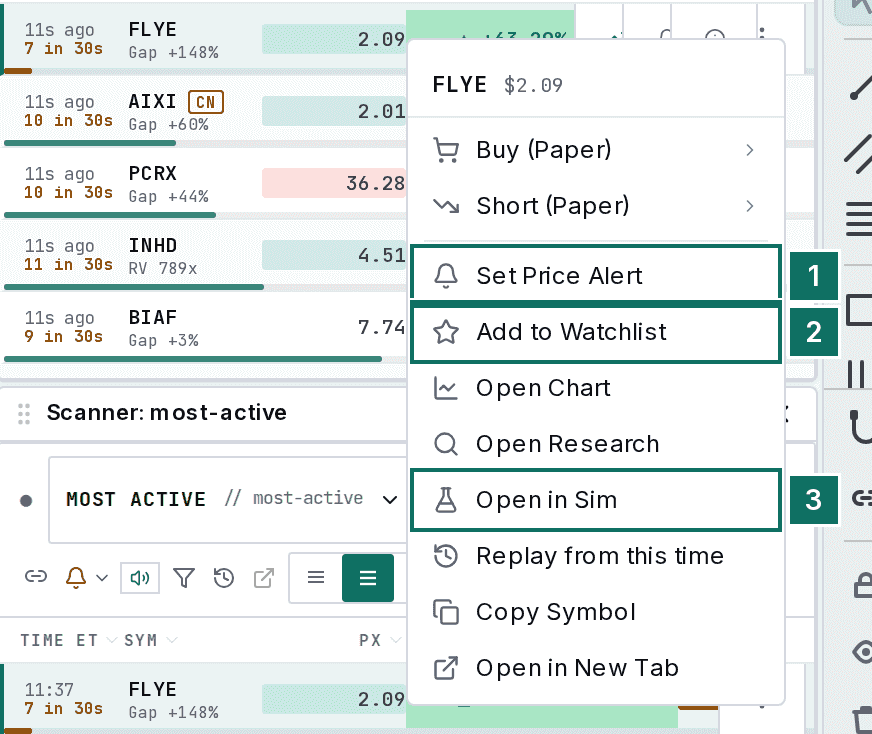
- Set Price Alert.
- Add to Watchlist.
- Open in Sim.
Make it yours
Advanced filters cut any scan down to your rules. Set a price cap and a minimum relative volume (volume compared with normal for this time of day), then click Save as scan. It appears under My scans. Tapeboard also remembers your panels, so the scanner opens the way you left it. To be told whenever a new stock joins a scan, click Arm alert at the top of its panel.
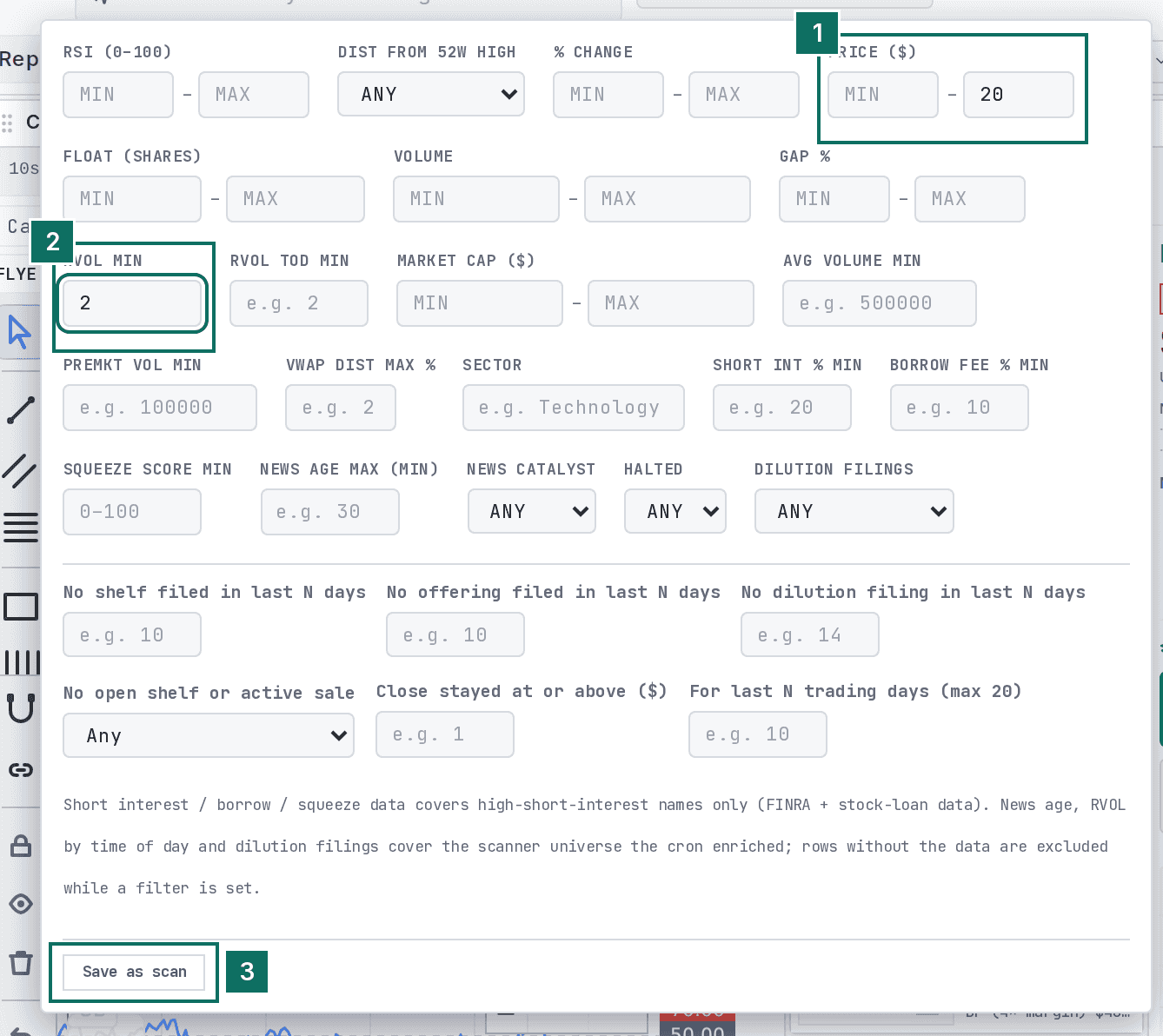
- A price range, here $20 at most.
- Relative volume of at least 2, so only stocks trading at twice their normal pace.
- Save as scan.
The scanner as cards
Each mover is a card. Tap a scan tab to switch, and tap Vol, RVol or Float to sort.
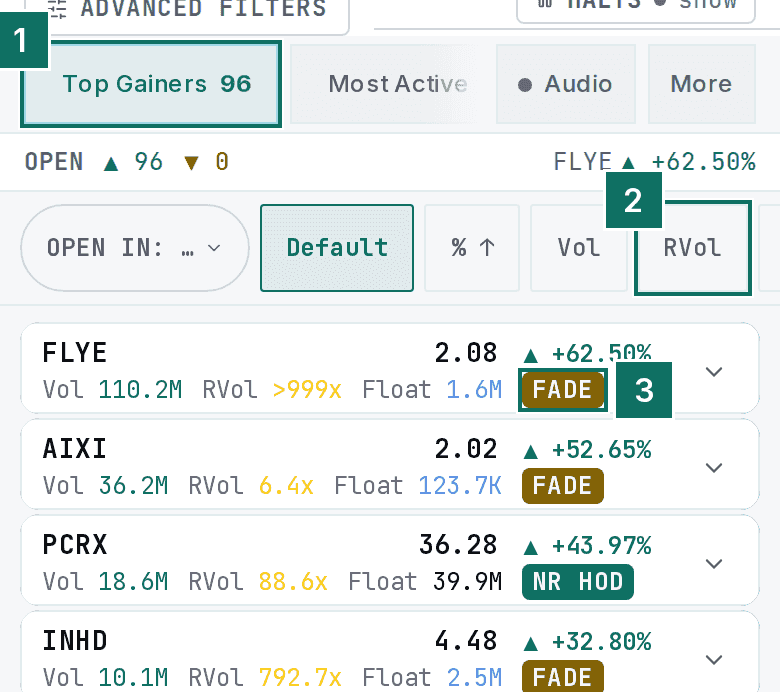
- Scan tabs.
- Sort chips.
- The tag that says why it is moving.
That is the whole loop: find it, read it, save it, practice it.
More guides
- How to place a practice stock trade in 4 steps
- How to build a watchlist and set price alerts
- How to read your trading journal in 3 steps
Looking for something else? See the full manual or the Academy.